The third milestone build of GanttProject 2.1 "Loire" is ready.
You're welcome to download it, try the new features and give us your feedback. What dashboards you'd like to have? Do you know some better way of arranging controls at the tabs of task properties dialog? Can you suggest a killer improvement for the new navigation panel? Your opinions are highly appreciated.
Please note that M3 is still far from being even alpha-quality software. It is unstable and many features don't work or just missing (in particular, export to HTML/PDF and printing). There are a lot of annoying bugs. We don't really need detailed bug reports yet, we want to hear just your overall impression and suggestions. Have I said that using M3 in production is strongly discouraged?
Showing posts with label M3. Show all posts
Showing posts with label M3. Show all posts
Wednesday, November 26, 2008
Sunday, November 23, 2008
What's new in GP "Loire" M3: dashboards
A few months ago Joanna Muras from Ireland started working on GanttProject, and her work resulted into the most significant feature of the third milestone: task dashboards.
Routine operations are bothering. We don't want to search manually for overdue tasks in a big project or to separate high priority tasks from low priority ones. We do want software to do it for us.
Now there are Dashboards in GanttProject. They sit in the top right corner and do the routine job

Currently there are three dashboards. Priority dashboard just groups tasks by priority. Today's agenda shows you only those tasks which are supposed to be completed today. Overdue tasks looks for tasks which were supposed to be finished in the past but have not been marked as "completed". Besides, it also shows tasks with end date today, tomorrow and in the near future (you may setup the look-ahead days count in the dashboard settings).
Every dashboard lets you open task properties directly from the dashboard window, but some of them provide even more convenient ways of fixing the most typical operations. When you see some task which is overdue just because you forgot to set its completion percentage to 100%, you'll probably want to complete it. Dashboard can do it with just two clicks. Tasks which are marked with a light bulb have auto fixes, which appear in the context menu. You can mark overdue tasks as completed or reschedule to tomorrow a task which is due today.
Routine operations are bothering. We don't want to search manually for overdue tasks in a big project or to separate high priority tasks from low priority ones. We do want software to do it for us.
Now there are Dashboards in GanttProject. They sit in the top right corner and do the routine job

Currently there are three dashboards. Priority dashboard just groups tasks by priority. Today's agenda shows you only those tasks which are supposed to be completed today. Overdue tasks looks for tasks which were supposed to be finished in the past but have not been marked as "completed". Besides, it also shows tasks with end date today, tomorrow and in the near future (you may setup the look-ahead days count in the dashboard settings).
Every dashboard lets you open task properties directly from the dashboard window, but some of them provide even more convenient ways of fixing the most typical operations. When you see some task which is overdue just because you forgot to set its completion percentage to 100%, you'll probably want to complete it. Dashboard can do it with just two clicks. Tasks which are marked with a light bulb have auto fixes, which appear in the context menu. You can mark overdue tasks as completed or reschedule to tomorrow a task which is due today.

Sunday, July 20, 2008
What's new in GP "Loire" M3: flexible layout of the task properties
Task properties dialog keeps changing. We discarded our home-grown bogus system of collapsable and hideable panes that had appeared in M2 and implemented it on top of Flexdock library. It works fine, and now you have some freedom in task properties layout. For instance, it is easy to arrange them like this:
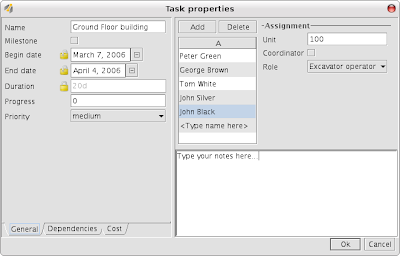
Just drag any tab and drop it where you want it to be. While dragging, flexdock outlines possible drop targets, and creating necessary layout is really easy.
And yes, task dependencies panel is back. It looks similar to resources panel and autocompletion also works:


Just drag any tab and drop it where you want it to be. While dragging, flexdock outlines possible drop targets, and creating necessary layout is really easy.
And yes, task dependencies panel is back. It looks similar to resources panel and autocompletion also works:

Monday, July 14, 2008
What's new in GP "Loire" M3: timeline and navigation panel
The third milestone build of the next major release GanttProject "Loire" is coming soon, and I am going to shed some light in this blog on a few new features from this milestone.
The first feature is a new look of timeline and new navigation controls. The timeline is less cluttered with lines and in its upper part there is just enough space for a group of buttons which control zooming and scrolling.
 Zoom in and zoom out do what they say. "Start" and "End" will scroll the chart so that a project start date or end date will become visible. "Today" scrolls the chart so that your current time is shown. The most interesting button is "Scroll". It show a popup pane with a small overview of the whole project timeline and highlighted currently visible portion.
 Well, that's not really new feature, you might have seen it in M2. But now it supports keyboard navigation. Using arrow keys you can scroll the chart to the left and to the right smoothly, with Page Up and Page Down you can do bigger jumps, you can even zoom in and out using Ctrl+ and Ctrl- keystrokes. And you can just click in any point of the overview pane and scroll the chart directly to that date. A tooltip will show you the date under the mouse pointer.
The first feature is a new look of timeline and new navigation controls. The timeline is less cluttered with lines and in its upper part there is just enough space for a group of buttons which control zooming and scrolling.
 Zoom in and zoom out do what they say. "Start" and "End" will scroll the chart so that a project start date or end date will become visible. "Today" scrolls the chart so that your current time is shown. The most interesting button is "Scroll". It show a popup pane with a small overview of the whole project timeline and highlighted currently visible portion.
 Well, that's not really new feature, you might have seen it in M2. But now it supports keyboard navigation. Using arrow keys you can scroll the chart to the left and to the right smoothly, with Page Up and Page Down you can do bigger jumps, you can even zoom in and out using Ctrl+ and Ctrl- keystrokes. And you can just click in any point of the overview pane and scroll the chart directly to that date. A tooltip will show you the date under the mouse pointer.
Subscribe to:
Posts (Atom)